Platform Quickstart
The thepi.pe platform provides a user-friendly interface for scraping and extracting data from various sources. This guide will walk you through the main features of the platform.
AI Model
All operations on the platform use Google Gemini 2.5 Flash Lite, a state-of-the-art vision-language model optimized for:
- Fast processing of documents and images
- High accuracy on complex layouts
- Support for multiple languages
- Understanding of charts, tables, and diagrams
- Excellent performance on structured data extraction
This model is automatically selected for all operations to ensure consistent, high-quality results across all your extractions.
Scraping
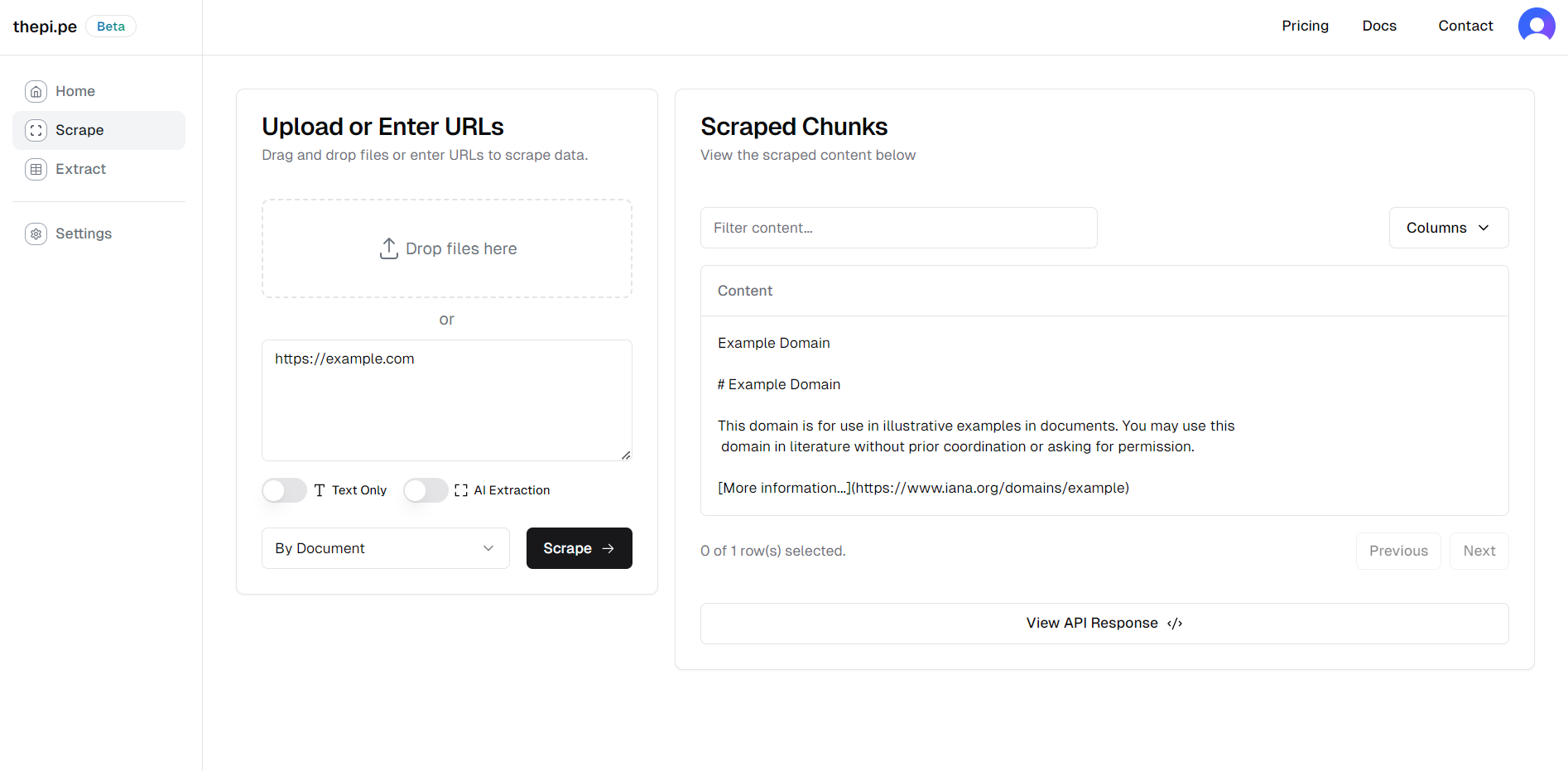
The scraping interface allows you to extract clean markdown and images from PDFs, Office documents, spreadsheets, media files, and more.
- Upload files in the designated area.
- Choose your scraping options:
- Input text only: Don't send page images to the vision model
- Output text only: Return only text content in the response
- AI Extraction: Use the vision-language model to transcribe each PDF page to clean markdown and crop out figures, charts, and tables using bounding boxes. Works on scanned documents with no text layer.
- Select a chunking method:
- By Document: Keep entire documents together
- By Page: Split content page by page
- By Section: Split by headers and sections
- By Keywords: Split when specified keywords are found
- Semantic: Embedding-based semantic chunking
- Click "Scrape" to start the process.
The scraped data will appear in the table on the right. You can view the full API response by clicking "View API Response" or download all chunks as a ZIP file.
Structured Extraction
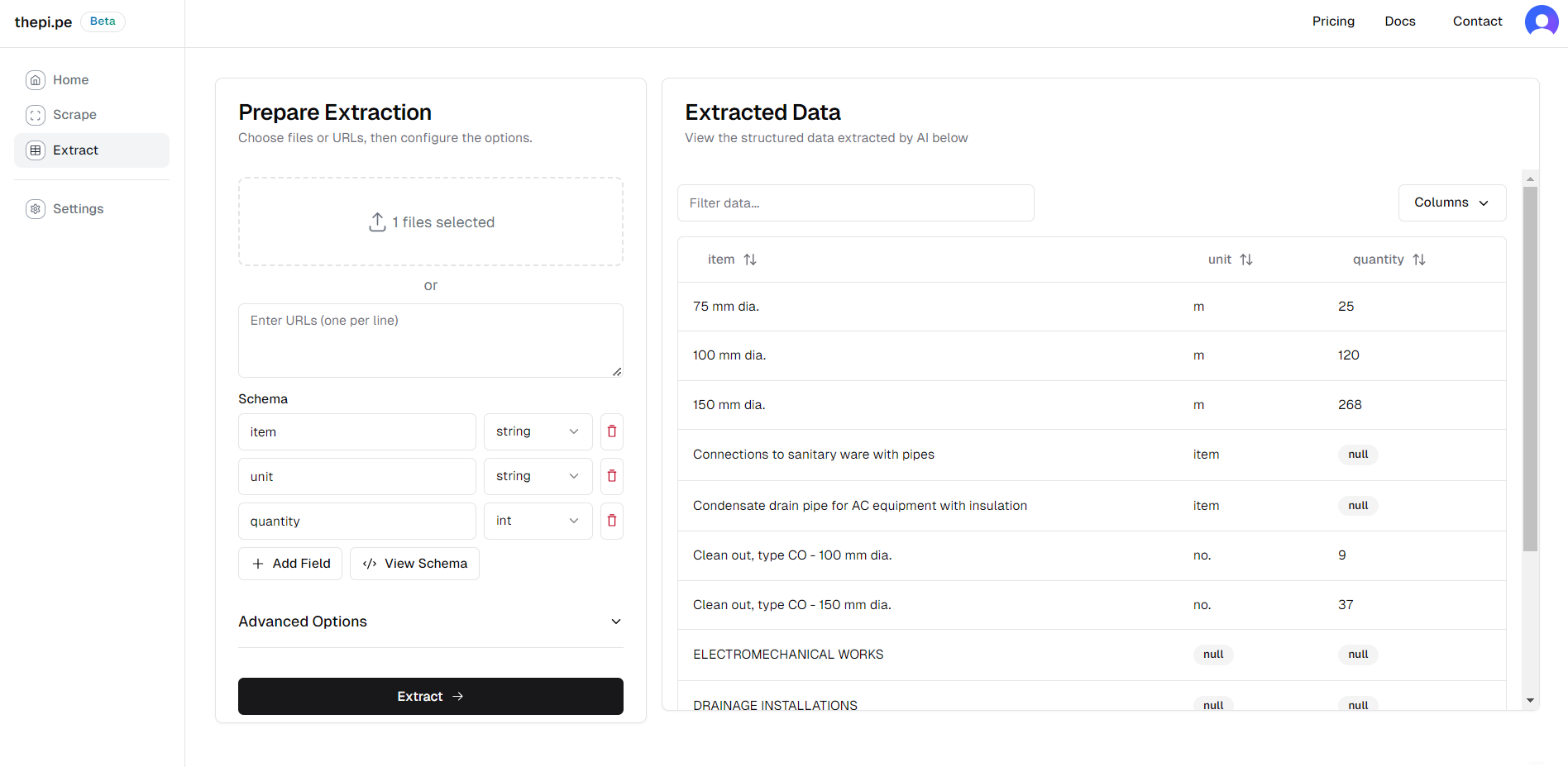
The extraction interface helps you extract structured data from your documents using Google Gemini 2.5 Flash Lite with structured outputs, so every row conforms to your schema.
- Upload files as in the scraping interface.
- Define your schema:
- Add fields and specify their types (string, int, float, bool, date)
- Use recent schemas from previous extractions
- Fields are processed in the order you define them
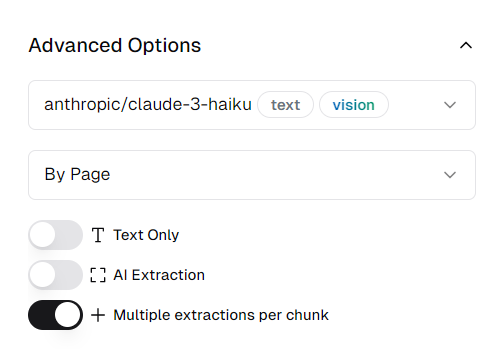
- Configure advanced options:
- Choose a chunking method (each chunk will be processed by the AI model)
- Enable/disable Text Only and AI Extraction
- Add custom prompts for specific extraction instructions
- Configure keyword-based chunking if needed
- Click "Extract" to start the process.
The extracted data will appear in the table on the right. You can download the results as a CSV file.

Job History
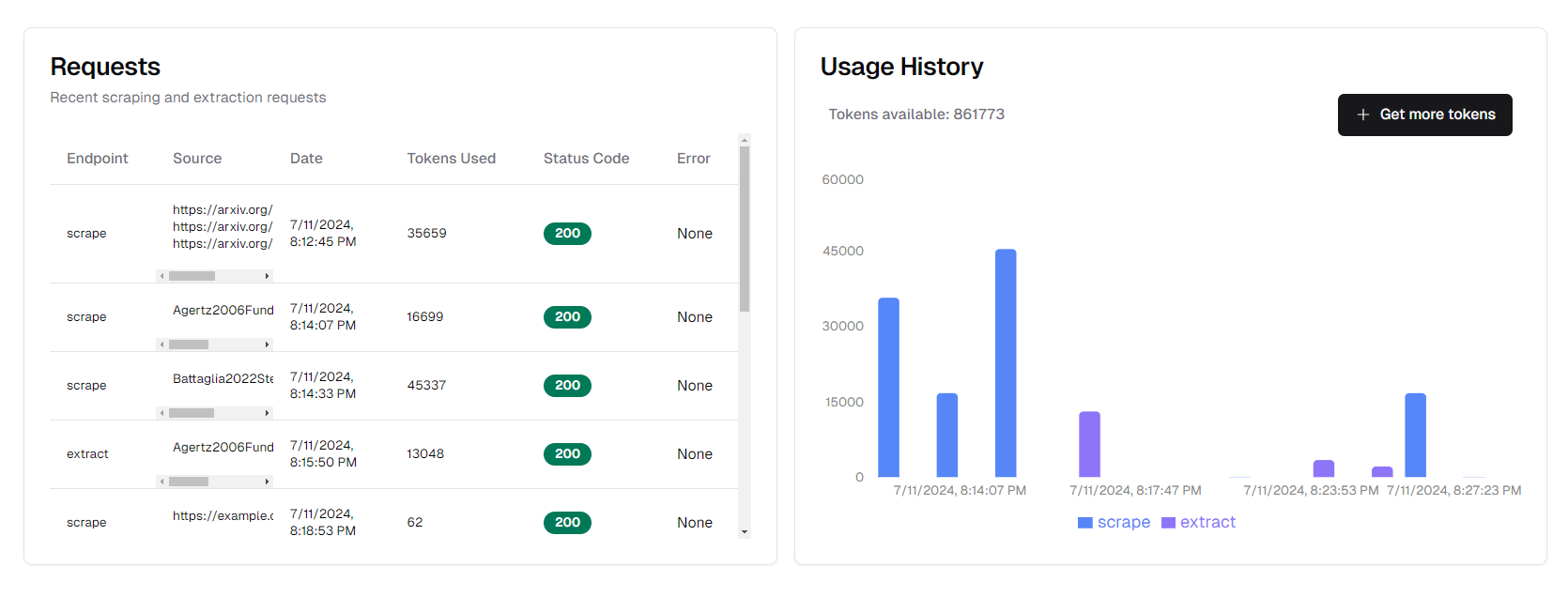
The job history section in the dashboard shows your recent scraping and extraction jobs. For each job, you can see:
- Endpoint used (scrape or extract)
- Source (file name)
- Date and time
- Tokens used
- Status code
- Any errors encountered
Supported File Types
The platform accepts uploaded files only. To process a web page, save it as a PDF or HTML file first.
- Documents: PDF (including scanned documents), Word (.docx), PowerPoint (.pptx), HTML
- Images: JPG, PNG
- Spreadsheets: Excel (.xlsx, .xls), CSV
- Media: Videos (MP4, MOV, WMV), Audio (MP3, WAV)
- Code: Jupyter notebooks (.ipynb), text and markdown files
- Archives: ZIP files containing supported formats
Chunking Strategies
Choose the appropriate chunking method based on your use case:
- By Document: Best for small documents or when you want to keep content together
- By Page: Ideal for PDFs and paginated documents
- By Section: Good for documents with clear section headers
- By Keywords: Useful when you want to split on specific terms
- Semantic: Embedding-based chunking that groups related content together
For questions or support:
Email: emmett@thepi.pe